

Tag Volume monitoring is your early warning system for tag issues. It tracks how often your tags fire and alerts you when a tag stops firing, or fires significantly less than expected.
A drop in tag volume usually points to a broken tag implementation, a trigger configuration problem, a change in site structure or user flow, or a JavaScript error that prevents the tag from running. Tag Volume monitoring helps you catch these issues before they affect your data quality.
What will you do?
- Open Tag Volume monitoring in the Code-Cube.io portal
- Create a monitoring rule for a tag
- Save the rule and manage your rules
⏰ Estimated time: about 5 minutes per monitoring rule
🔧 Requirements: A completed Tag Monitor setup, with your containers and domains configured
Important: Complete the basic Tag Monitor setup first. If you haven't, follow  Set up Tag Monitor (client-side) or
 Set up Tag Monitor (server-side).
- Step 1 – Open Tag Volume monitoring
- Step 2 – Create a monitoring rule
- 2.1 Container ID
- 2.2 Domain
- 2.3 Tag details
- 2.4 Trigger (optional)
- 2.5 Frequency
- Step 3 – Save the rule
- Managing monitoring rules
- Best practices
- Troubleshooting
- Next steps
Step 1 – Open Tag Volume monitoring
- Go to the Tag Monitor configuration page in the Code-Cube.io portal
- Open the section 'Tag Volume monitoring'
Step 2 – Create a monitoring rule
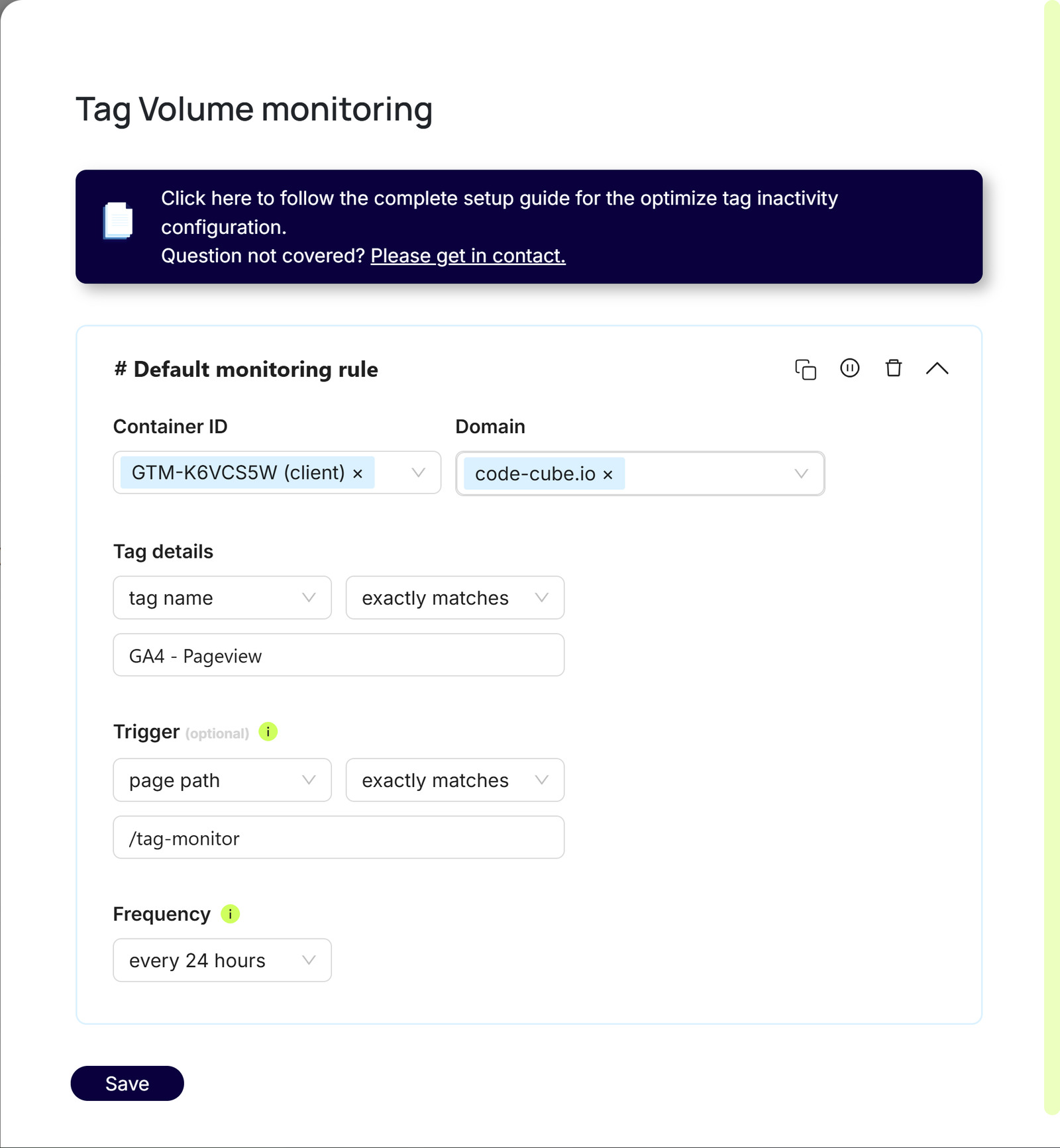
Click + Add monitoring rule. Each rule consists of the settings below.
Setting | Required? |
Container ID | Required |
Domain | Required |
Tag details | Required |
Trigger | Optional |
Frequency | Required |
2.1 Container ID
Select the container to monitor. The dropdown shows all containers you added in the 'Client-side error monitoring' or 'Server-side error monitoring' section.
Tip: Don't see your container? Add it to one of those sections first.
2.2 Domain
Choose the domain where you want to monitor tag volume. The dropdown shows all domains from 'General settings'.
Tip: Don't see your domain? Add it to 'General settings' first.
2.3 Tag details
Specify which tag you want to monitor:
- Tag name or tag ID: choose whether the rule identifies the tag by name or by ID
- Match condition:
exactly matches: the tag name or ID matches exactlycontains: the tag name or ID includes your text anywherematches regex: use a regular expression for advanced pattern matching- Value: enter the tag name or ID as it appears in Google Tag Manager
Important: Tag names and IDs are case-sensitive. Enter them exactly as they appear in Google Tag Manager.
2.4 Trigger (optional)
Leave the trigger empty to monitor the tag across your entire domain. Add a trigger to focus on specific sections, such as checkout pages or product categories.
- Trigger type:
page path(a specific URL path) orfull URL(a complete URL) - Match type:
exactly matches,contains,starts with, orends with - Value: the value to match
2.5 Frequency
Set how often the rule checks your tag. Pick a frequency that fits how often the tag fires: a tag that fires once a day can't be checked every hour.
Frequency | Use for |
every hour | Critical tags that need immediate attention, such as revenue tracking |
every day | Standard tracking tags |
every week | Less critical or low-traffic tags |
Step 3 – Save the rule
Click Save to activate the rule. Monitoring starts according to the frequency you selected.
Managing monitoring rules
- Add more rules: click + Add monitoring rule again. Each rule can monitor a different tag, container, or domain.
- Edit a rule: click directly on the field you want to change.
- Rule actions: use the icons in the top-right corner of each rule:
- 📋 Copy rule: duplicate a rule to create a similar one
- ⏸️ Pause rule: temporarily stop monitoring without deleting the rule
- 🗑️ Delete rule: permanently remove the rule
Best practices
- Start with your most critical tags: conversion tracking, primary analytics, and marketing attribution tags.
- Match frequency to the tag and your traffic: see the table in 2.5. Low-traffic domains need a lower frequency.
- Use triggers strategically: create specific rules for conversion funnels, monitor high- and low-traffic pages separately, and leave out admin or test environments.
- Review your rules monthly: remove deprecated tags and adjust frequencies when traffic patterns change.
Tip: Overly broad monitoring creates noise. Use triggers to focus on the pages and user journeys that matter most to your business.
Troubleshooting
Problem | What to check |
Rule not generating expected alerts | The tag name or ID matches exactly (including case); the correct container and domain are selected; the tag actually fires (check with your browser's developer tools) |
Too many false alerts | Lower the frequency; add triggers to leave out low-traffic or test pages; check whether the tag's behavior has legitimately changed |
Missing alerts for known issues | The tag identifier is correct; the frequency isn't too low for the issue; the tag is within the monitored container and domain |
Still stuck? Contact the Code-Cube.io team.
Next steps
Watch the results during the first week to learn your normal patterns, then fine-tune your rules and add more critical tags.
 Notifications & alerts: choose where and how you receive alerts
 Understanding & solving errors: learn how to read and fix the errors Tag Monitor reports